How to Download Files from Notes360 (Step-by-Step Guide)
To keep Notes360 secure and free for everyone, we use a simple verification-based download system. This guide explains exactly how to download files without any confusion.
Step 1: Click the Download Link on Notes360
When you click any Download link on Notes360, you will be automatically redirected to our site: technicalinteract.com
Protect files from bots and abuse
Keep downloads fast and secure
Support free content creation
Step 2: Random Post Opens on TechnicalInteract
After redirection:
A random blog post opens
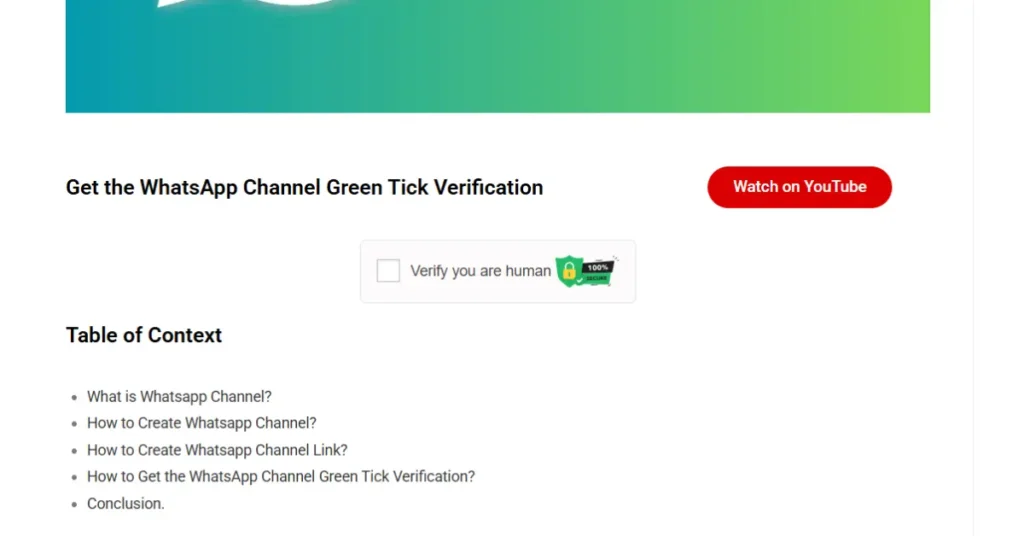
This page contains a “Verify you are human” Checkbox CAPTCHA
Simply click the Verify / I am not a robot button.
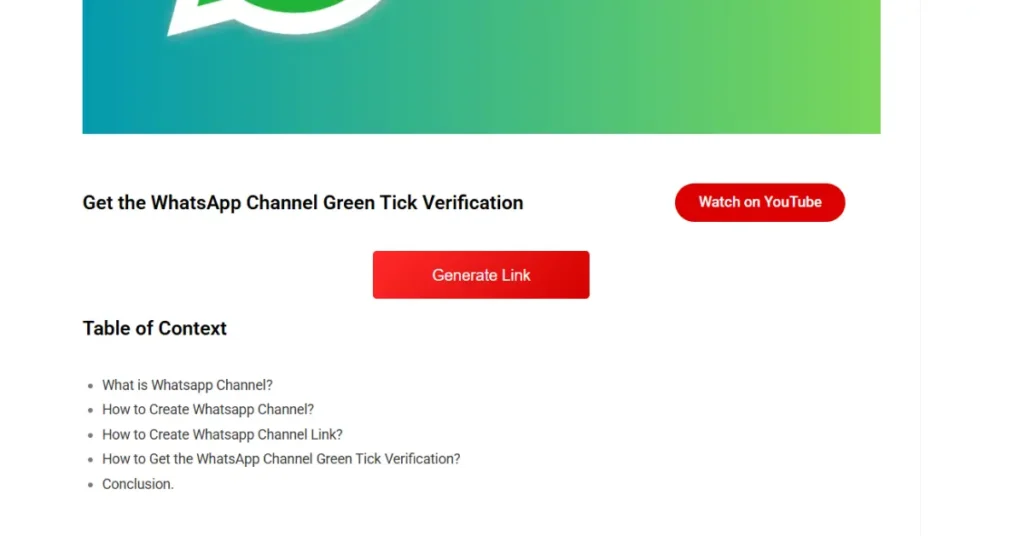
Step 3: Click “Generate Link”
When you click the Generate button:
The page will automatically scroll down
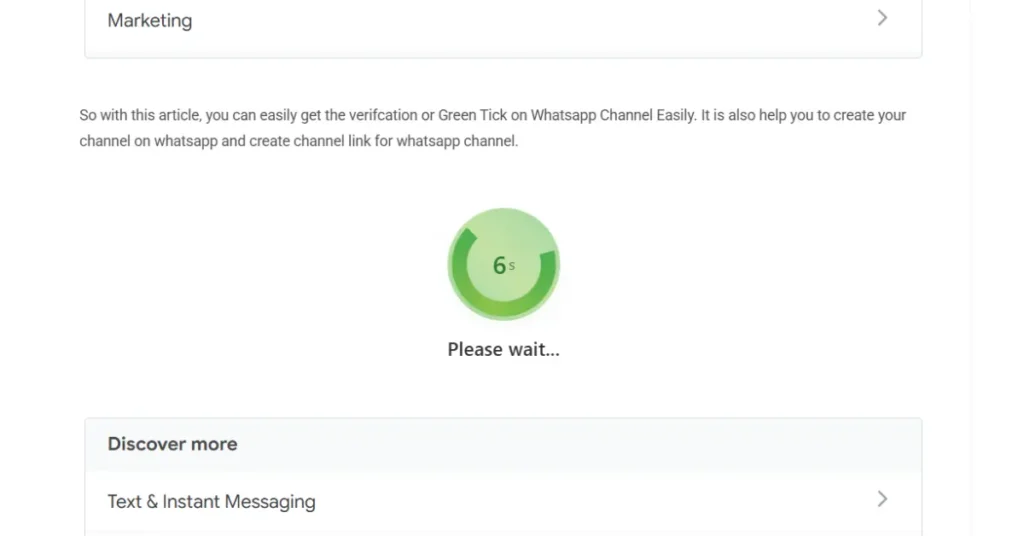
A timer will start
The timer helps us:
Prevent misuse of download links
Ensure fair access for everyone
Once the timer reaches zero…
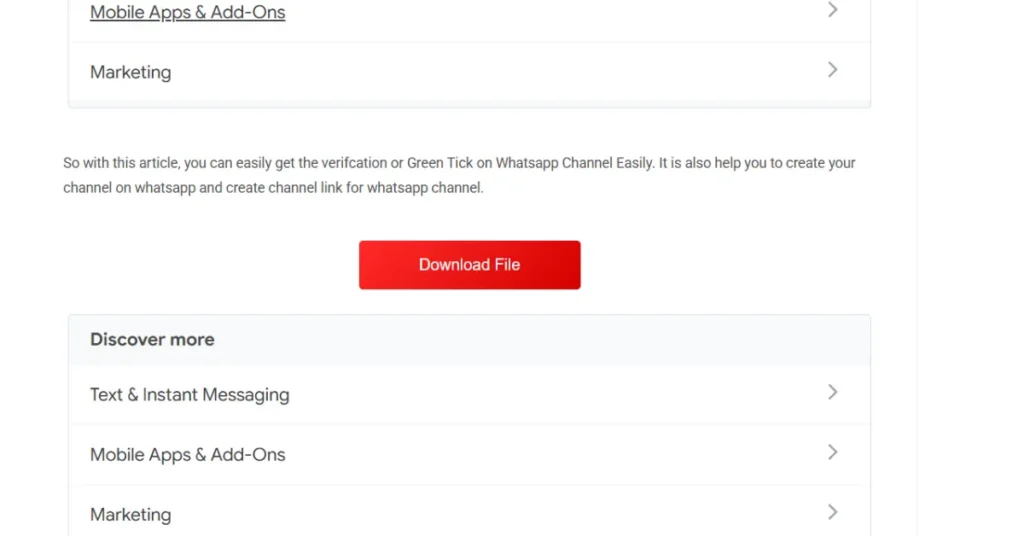
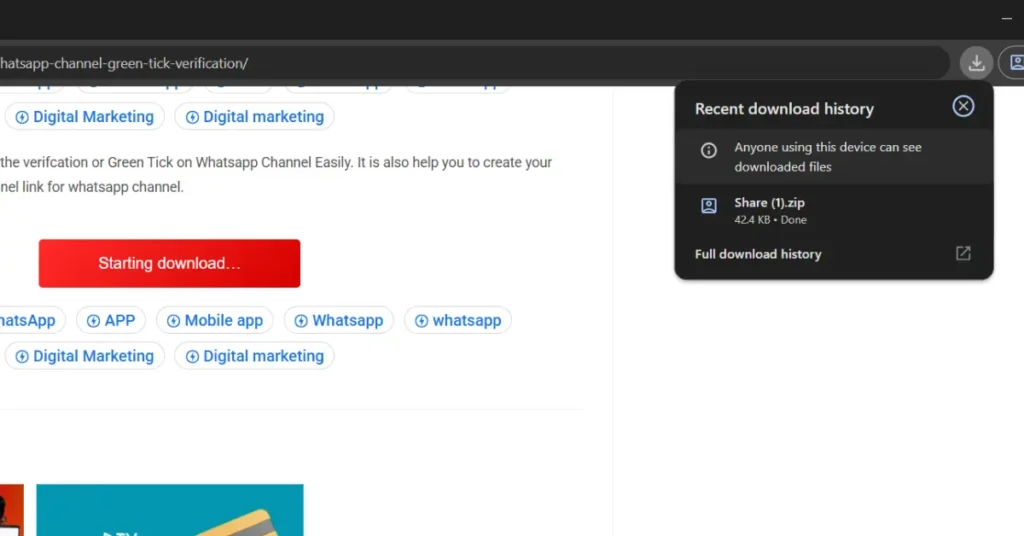
Step 4: Click the Red Download File Button
After the timer completes:
A Red Download Button becomes visible
Click it once
Your file will start downloading automatically… Note: If you have Google Drive installed on your phone, you may need to select an email ID.
♥ Thank You for Supporting Us
We need your support to create the best content for you. This process helps us earn and continue providing free, high-quality study material.